Fixing the Microsoft Azure AD Connect User Name or Password is Incorrect Error

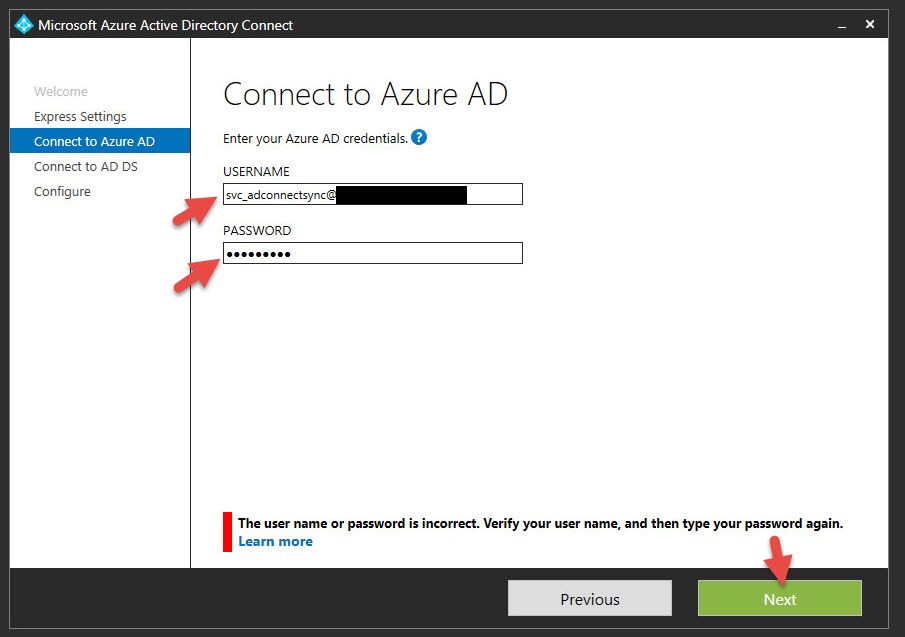
I was setting up a new Microsoft Azure AD subscription for someone and came across this issue. Whenever I tried to sign into Azure AD Connect with a Global Administrator account it kept saying the below error message even though I verified the user ID and password were correct:
The user name or password is incorrect. Verify your user name, and then type your password again.
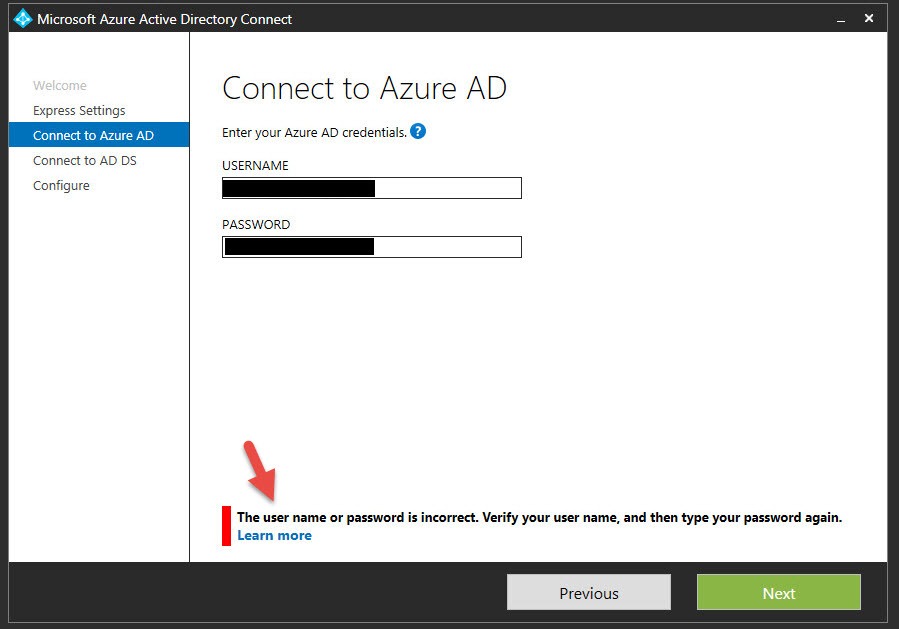
The solution to this problem is very simple. Often times when an Azure Administrator for a company sets up their Azure subscription they do it using their Microsoft account (the onmicrosoft.com one), in this example let’s say [email protected]. When you setup Azure AD you have to verify the yourcompany.com domain with a TXT record and then the next step is usually to install and setup Azure AD Connect. The problem is that Azure AD requires the Global Administrator account it uses to be unique. What is happening is that there is an account already existing in the on premises AD with the same account name as the one being used by the Microsoft account for the subscription, in this example [email protected], and this is throwing things off as Azure AD Connect attempts to bridge the on premises AD with Azure AD.
You can verify this by going to portal.azure.com and then going to your Default Directory. Go under Users and groups – All Users and find the login you are using to login to the portal with. You can see it will say the source is “Microsoft Account”:
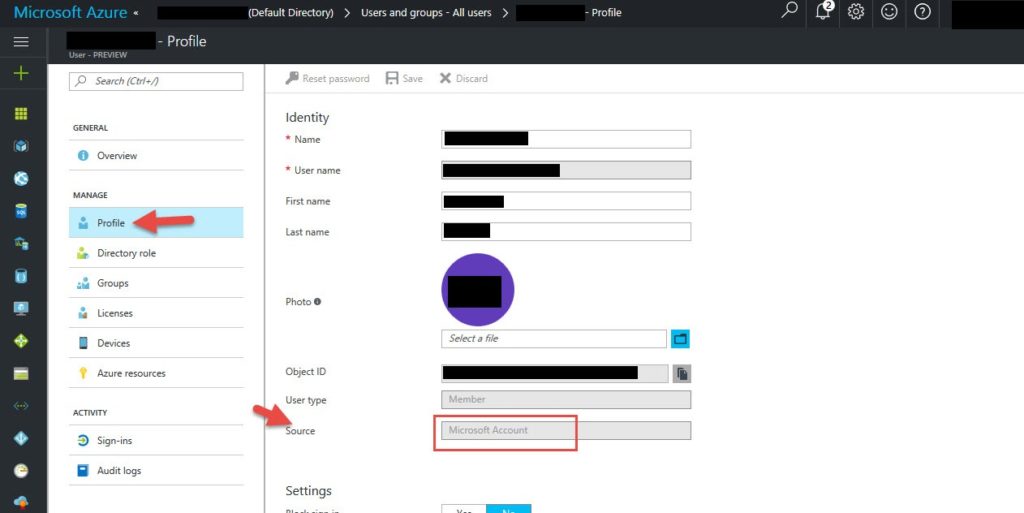
To get around this problem, just create a sync account for Azure AD with the Global Administrator role that is unique and not in the on premises Active Directory.
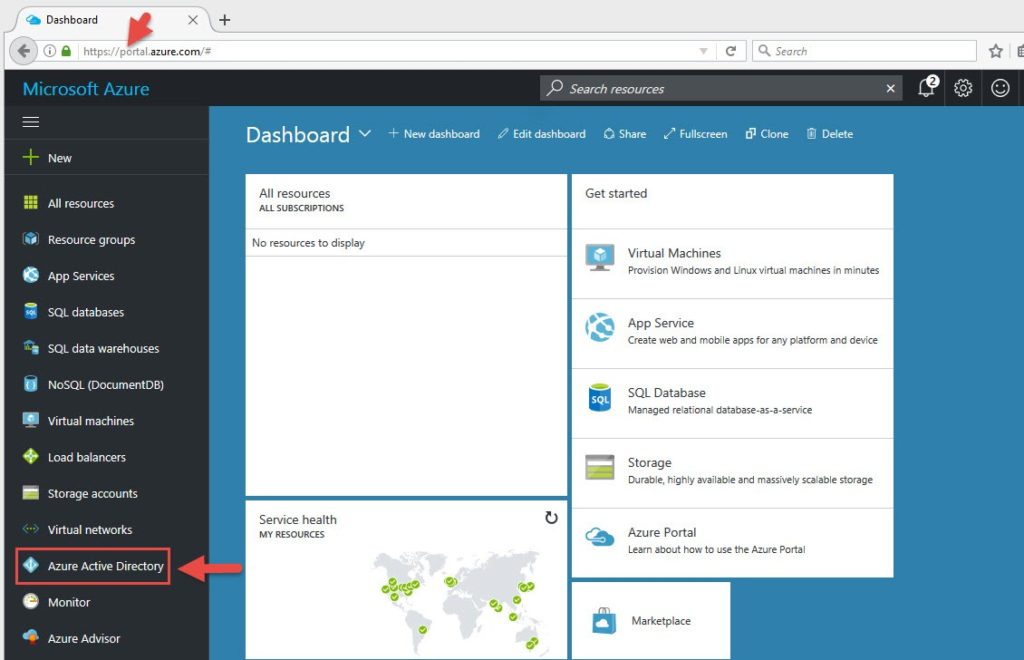
1. Log into https://portal.azure.com and go to Azure Active Directory.
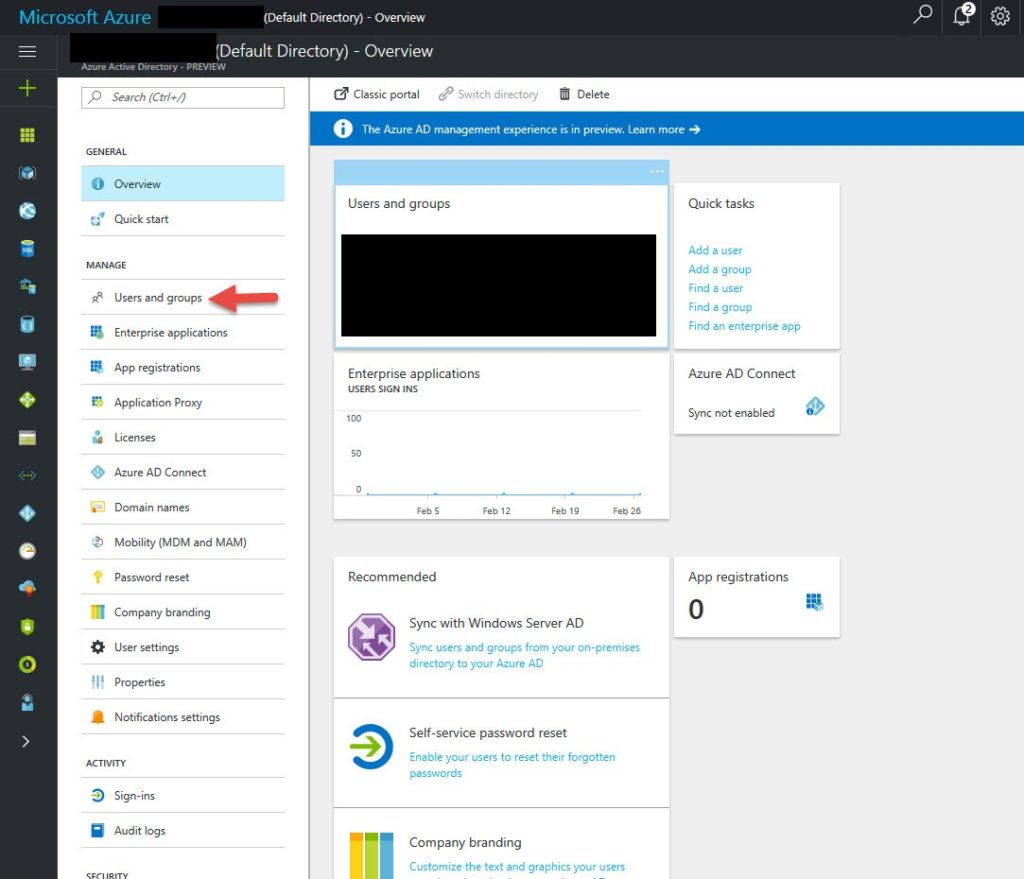
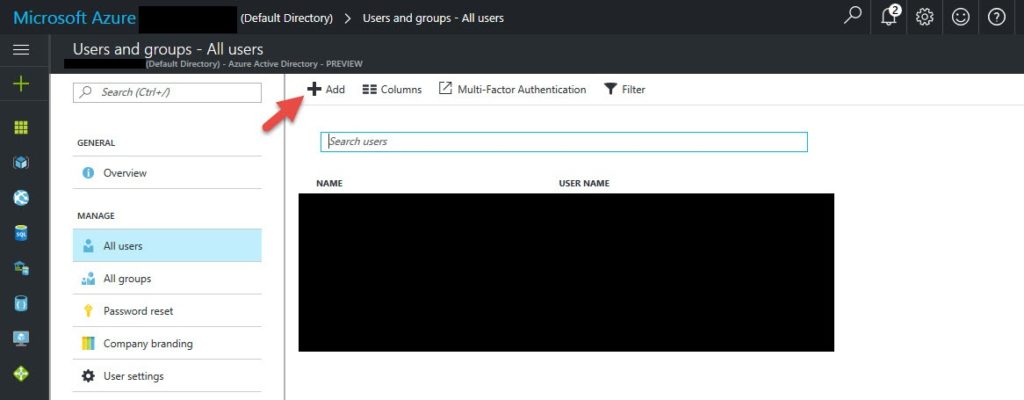
2. Click on Users and groups
4. Click Add
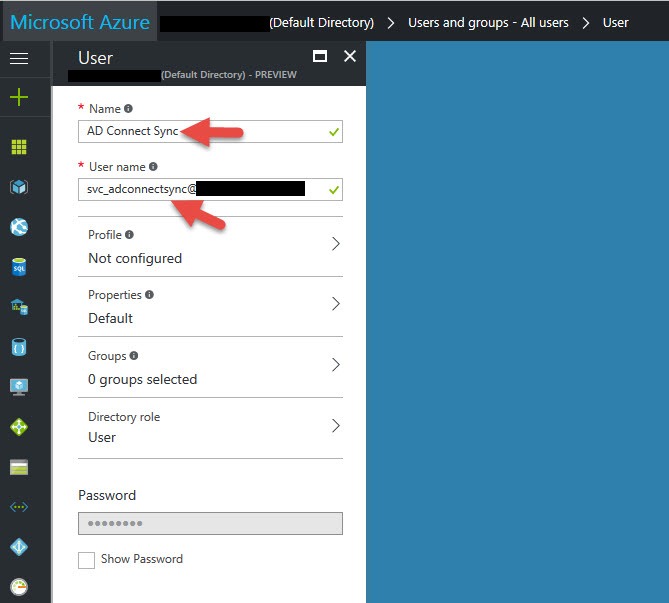
5. Give it a Name and User Name, in this example it is [email protected] which I know does not exist in my on premises AD.
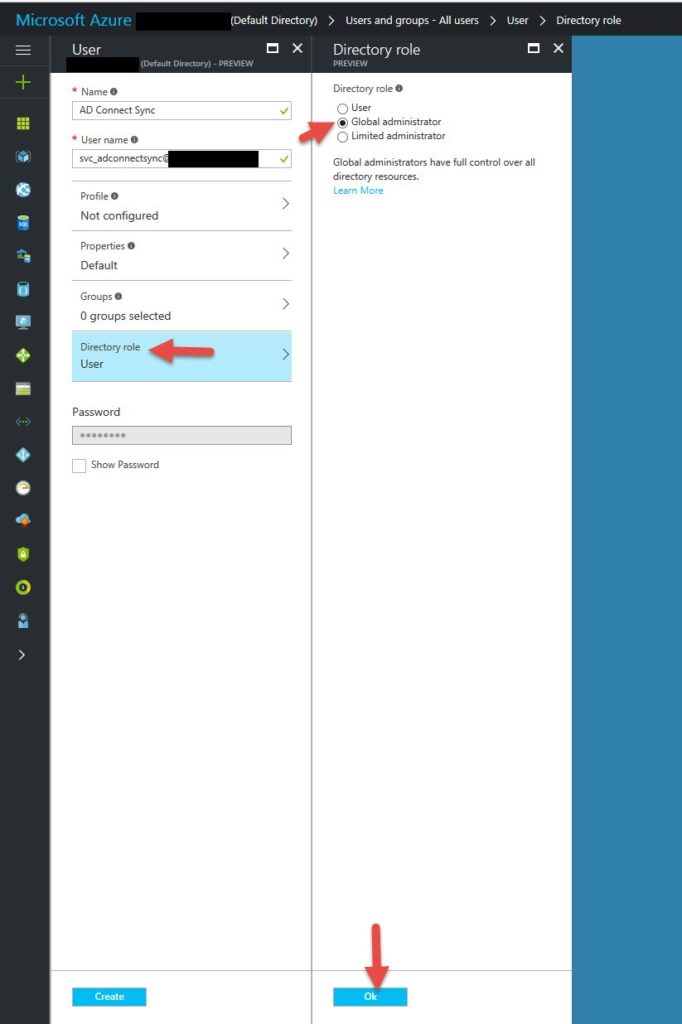
6. Click on Directory Role and change it to Global Administrator, then press OK at the bottom.
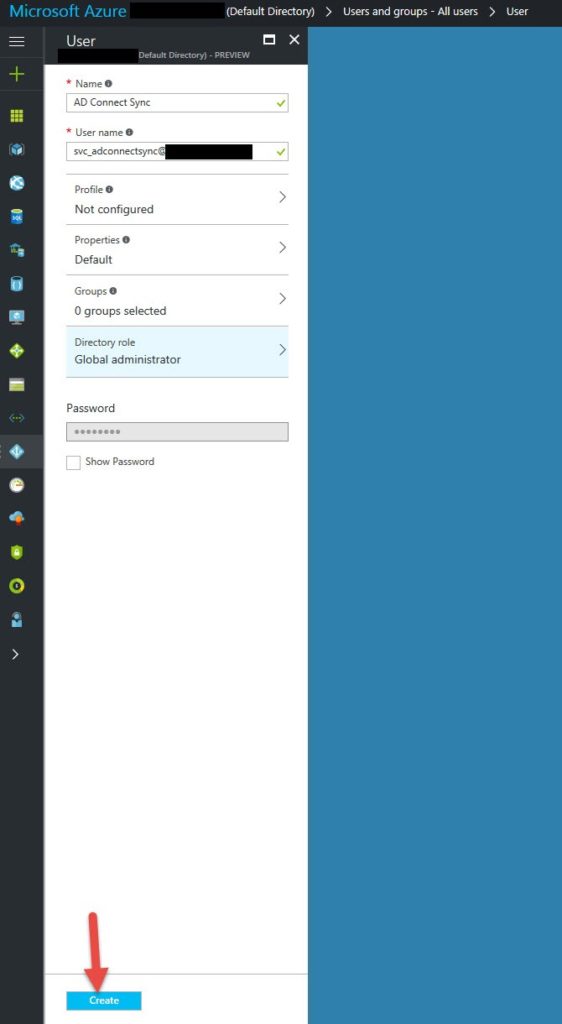
7. Now hit Create to create the account.
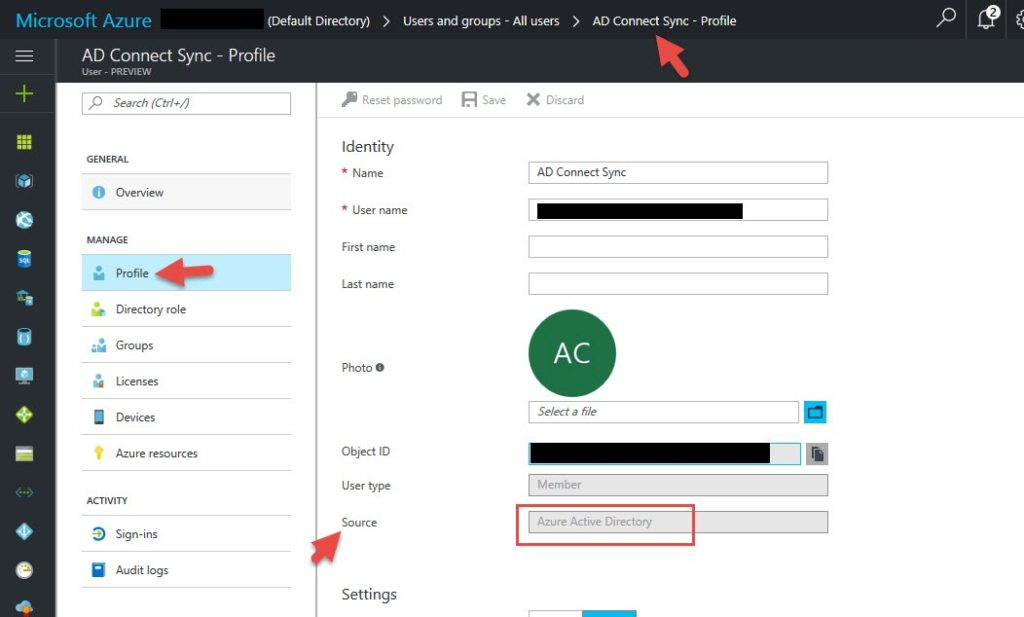
8. Now if you check the profile for this newly created account you will see it’s Source is “Azure Active Directory”.
9. Now go back to AD Connect and type in your new credentials and hit Next
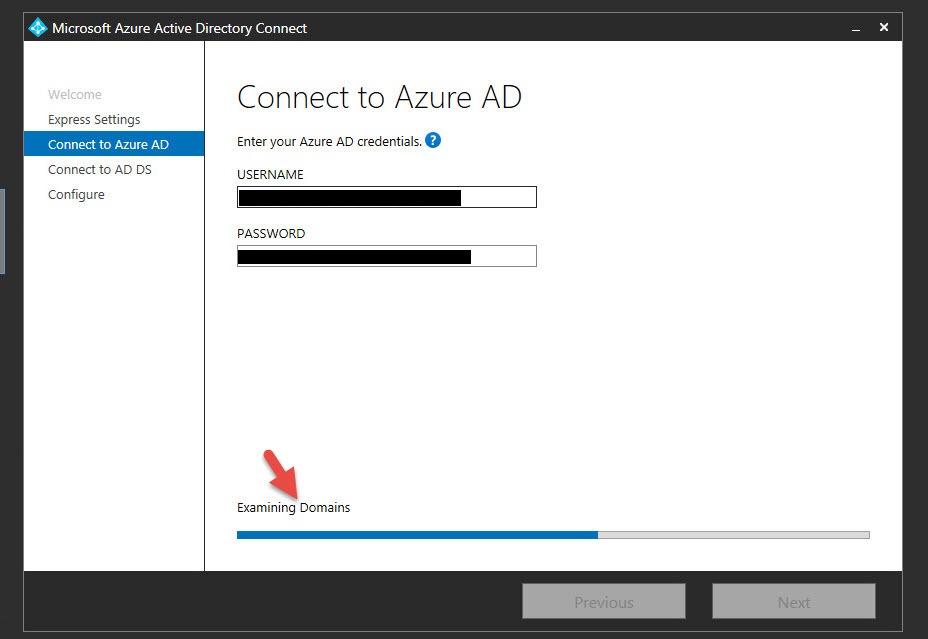
10. You’ll see login is successful and it will enumerate Azure AD
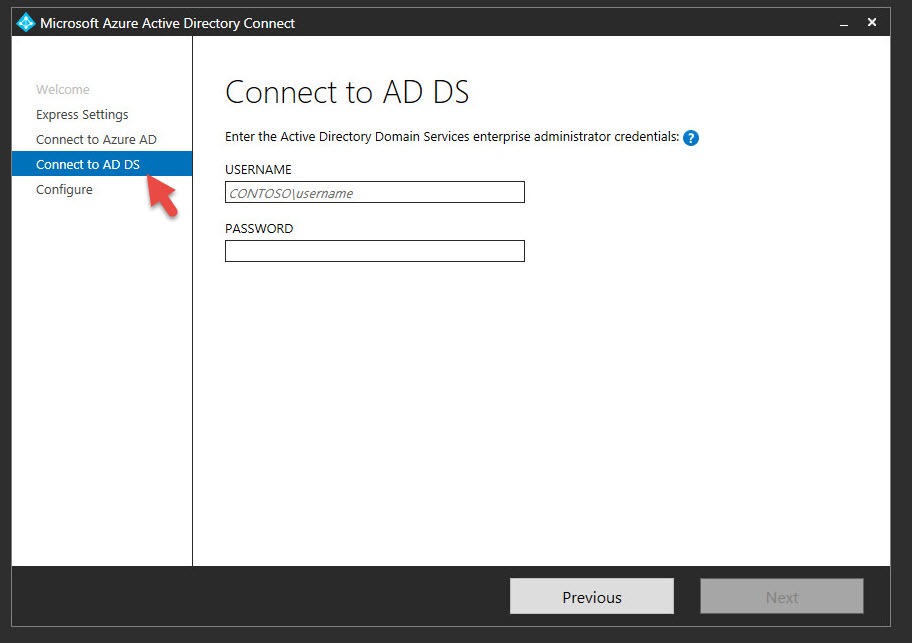
11. Then the next step is to connect to Active Directory Domain Services using your on premises Enterprise Admin credentials and completing the AD Connect setup. You should have no problem going forward now.
Hope this helps if you come across this issue! Please leave a comment if this helped or if you have any questions.
Author
 Jason Samuel