How to delete a hidden VPX instance on a Citrix NetScaler SDX using XenServer command line

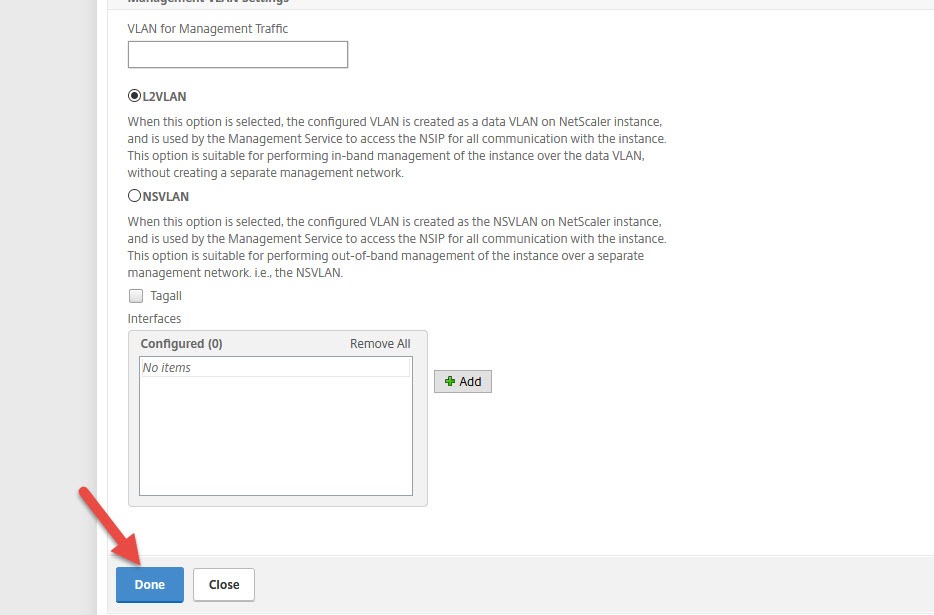
Sometimes when creating a VPX instance on your NetScaler SDX you might be in a hurry and accidentally click Done twice which can cause the NetScaler to try provisioning an instance but not complete it since the initial provisioning has been interrupted:
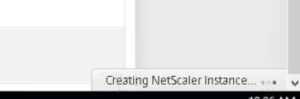
It’s easy to overlook the “Creating NetScaler Instance…” dialog in the bottom right as the SVM and XenServer prepare to provision the instance:
When you check the Instance in the GUI the SDX SVM will say there are no instances:
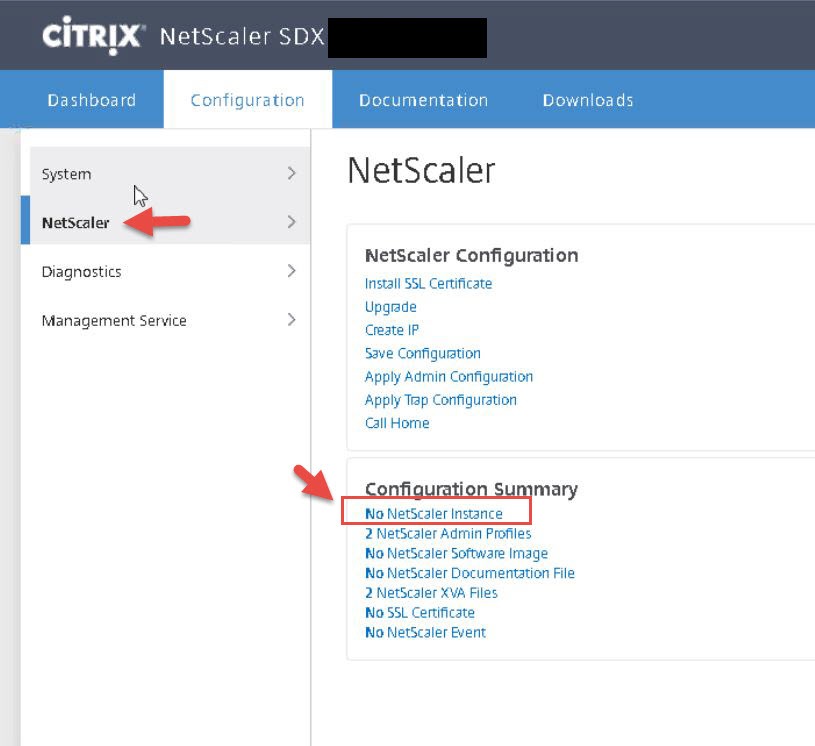
There is a disconnect between the SVM and what’s running on Xenserver at this point. You will need to delete the hidden/partially created orphaned instance manually:
1. You can login to the XenServer via System > XenServer in the SVM as long as you are connected using https in your browser. Alternatively you can use Putty to SSH into the XenServer IP. Make sure you login as root. Default is root/nsroot. When you change the nsroot password on your NetScaler it will change this root password to that new password too. Do not login as the nsroot account itself on your XenServer because it will not have permissions to do much of anything. Login as root only.
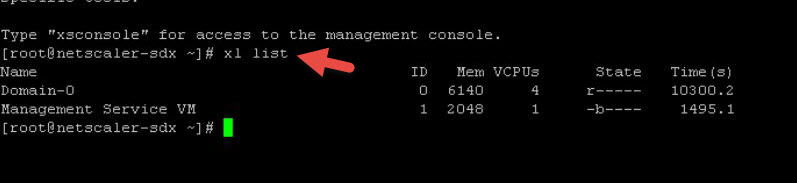
2. To show running VM list with RAM and vCPUs displayed:
xl list
3. To show running VM list with UUID which you’ll need to copy and paste in the next steps:
xe vm-list
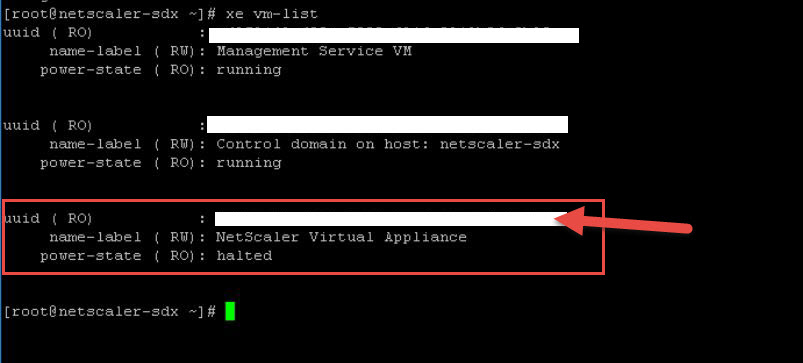
4. The instance must be shutdown to delete it. If it is turned on in a running state then run: xe vm-shutdown uuid=CopyAndPasteUUIDhere
5. To delete the partially created instance that is hidden from SVM: xe vm-destroy uuid=CopyAndPasteUUIDhere
6. Now you can go back to NetScaler > Instances and spin up your instance with no issue
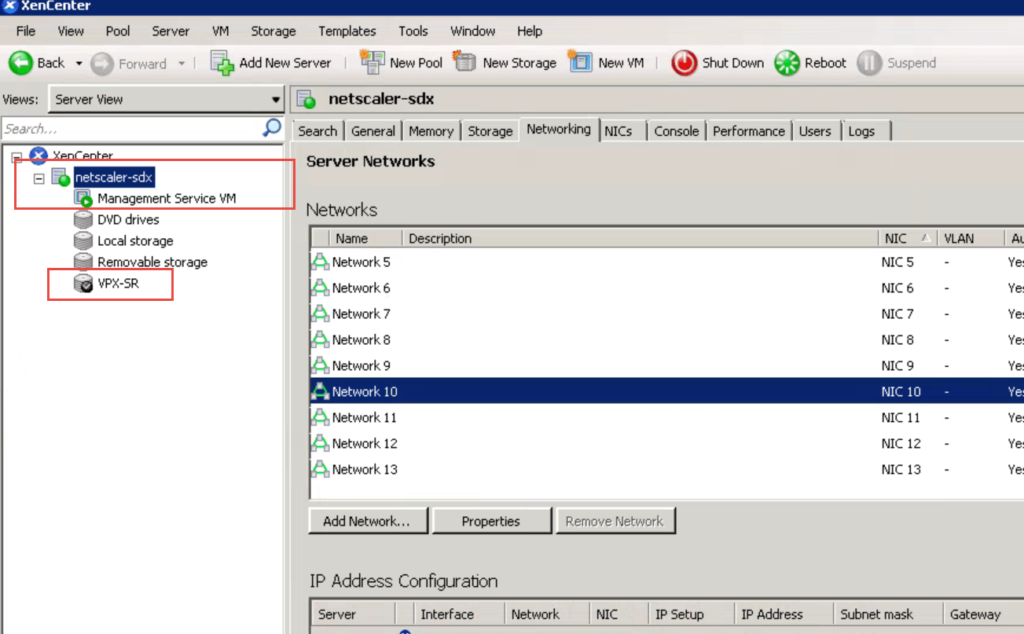
Another option is to use XenCenter to log into the XenServer and delete the VM via the XenCenter GUI but this requires logging into the xsconsole and setting the Management interface in order for XenCenter to connect to the XenServer. By default it will not connect but once you are in you can see the SVM and any VMs that might be running like this:
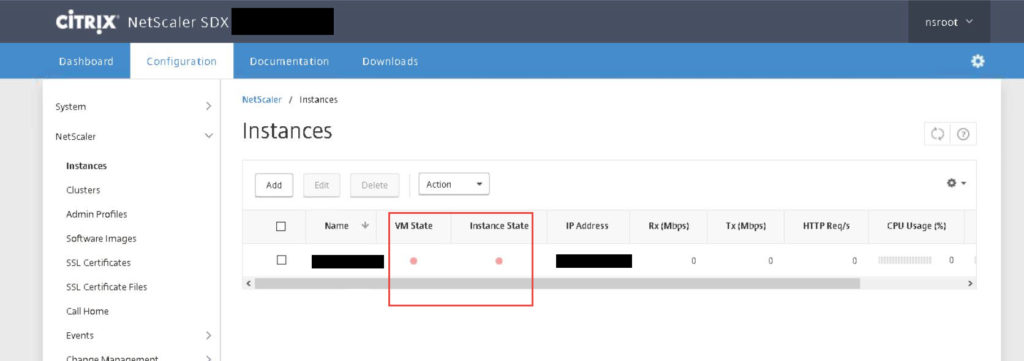
Alternatively, if you have a maintenance window you can reboot the SDX appliance. Once it comes up verify in XenServer the instance is gone. The SVM may now show the partially created instance and it will be red (DOWN):
If you try and delete it you will get an error saying “Request cannot be processed. ns not found with ID xxxxxxxxxxxxxx”:
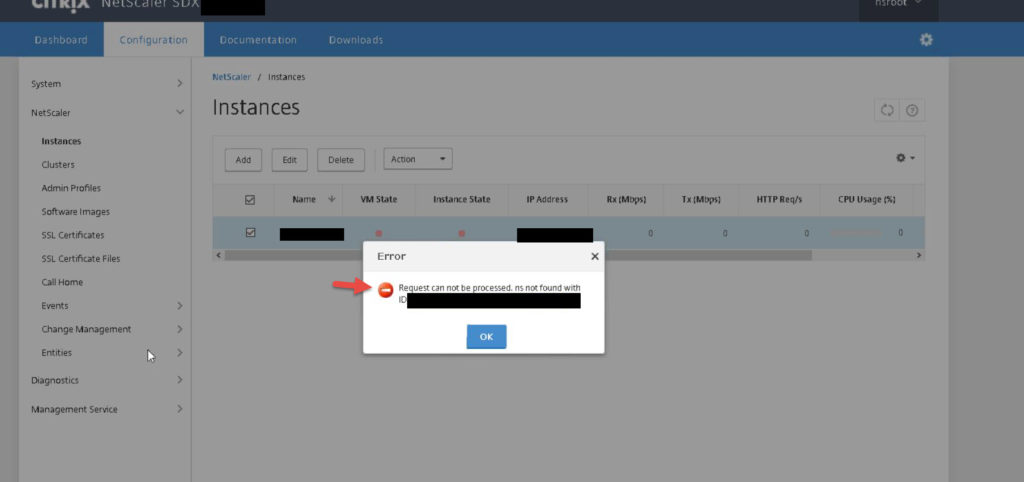
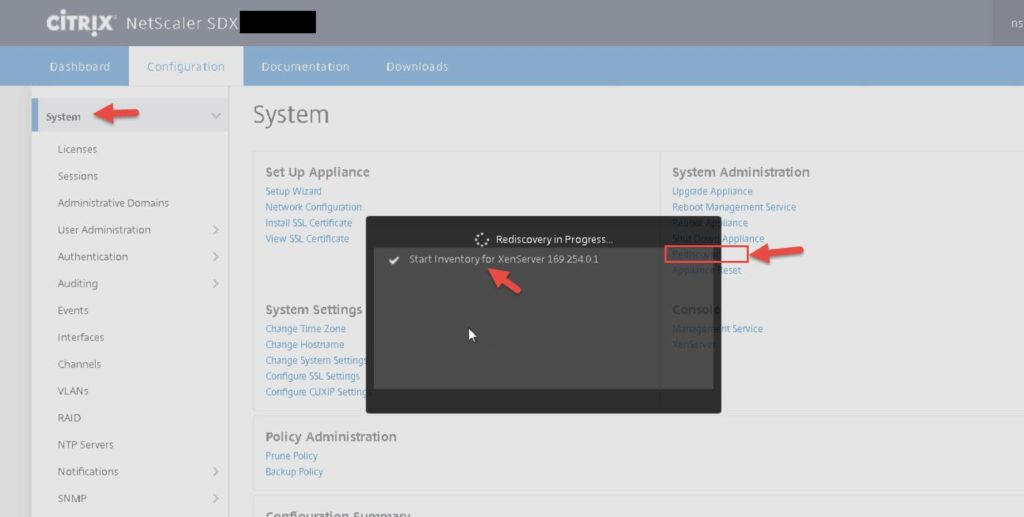
It is remembering the first attempt at creating it. Go and do a Rediscover and it will begin inventorying dom0 on 169.254.0.1. Once it completes the orphaned instance will be deleted from the SVM.
Now you can create an instance with the same name normally. Hope this helps!
Author
 Jason Samuel